Live Remote Support
DeviceView allows a user to connect to an end user's device with their knowledge and consent, sees the screen in real time, and works the problem with voice, control, and annotations (Available functionality is based upon the OS type)
Before you start
- The target device must be enrolled — see Quick Start Guide or Installation Guide.
Start the session
- Navigate to Devices in the console.
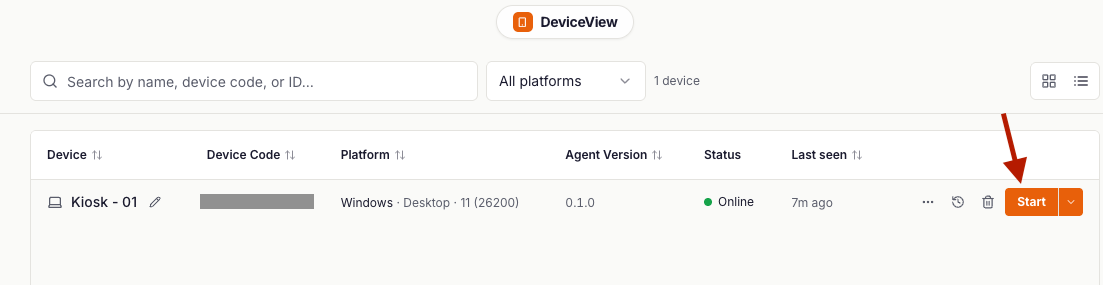
- Click Start on the target device
Inside the session
Once connected, you have access to:
- Screen view with peer-to-peer streaming and adaptive bitrate. Direct connection where possible, TURN fallback otherwise.
- Screen control, requestable separately from view — some policies let you see a screen but not take control.
- Two-way voice using the session's encrypted channel. No dial-in needed. Android Only
- Privacy Mode - Place the device into Privacy Mode. The screen will go black on the target device but the remote agent will have full view and control of the target device. You can change what text shows on the target device via settings.
- Live annotations — draw directly on the end user's screen to highlight a button, circle an error message, or walk through a form.Android Only
- Quick Actions Reboot, Shutdown, Lock Screen, Wake Screen and more depending on the OS type.
- Diagnostics — View telemetry data, device information, processes and more depending on the OS type.
- Commands and Scripts - Based upon the OS type you can run live shell commands on the target device and leverage your script repository to run pre-set actions.
Ending the session
Click End session or wait for the end user to disconnect. The recording and audit log are available in Sessions → Audit log within a few seconds.
Related
- Session Recording & Audit — retention, exports, and compliance.